Your WhatsApp profile picture serves as your primary digital identity across personal chats, group conversations, and professional messaging threads. Managing this visual icon correctly protects your personal privacy while establishing a recognized presence.
Setting up, customizing, and securing your profile photo requires an understanding of settings on Android, iPhone, WhatsApp Web, and desktop apps. In this master guide, you will discover how to edit images, configure granular privacy controls, resolve common upload bugs, and utilize digital avatars as profile picture alternatives.
Your WhatsApp profile picture displays across conversation lists, contact cards, call logs, and group rosters. You can change or remove your picture anytime using device settings without triggering notification alerts. Granular privacy controls allow you to share your photo with Everyone, My Contacts, My Contacts Except specific users, or Nobody. For enhanced identity masking beyond photos, discover how phone number privacy on WhatsApp works alongside username features.
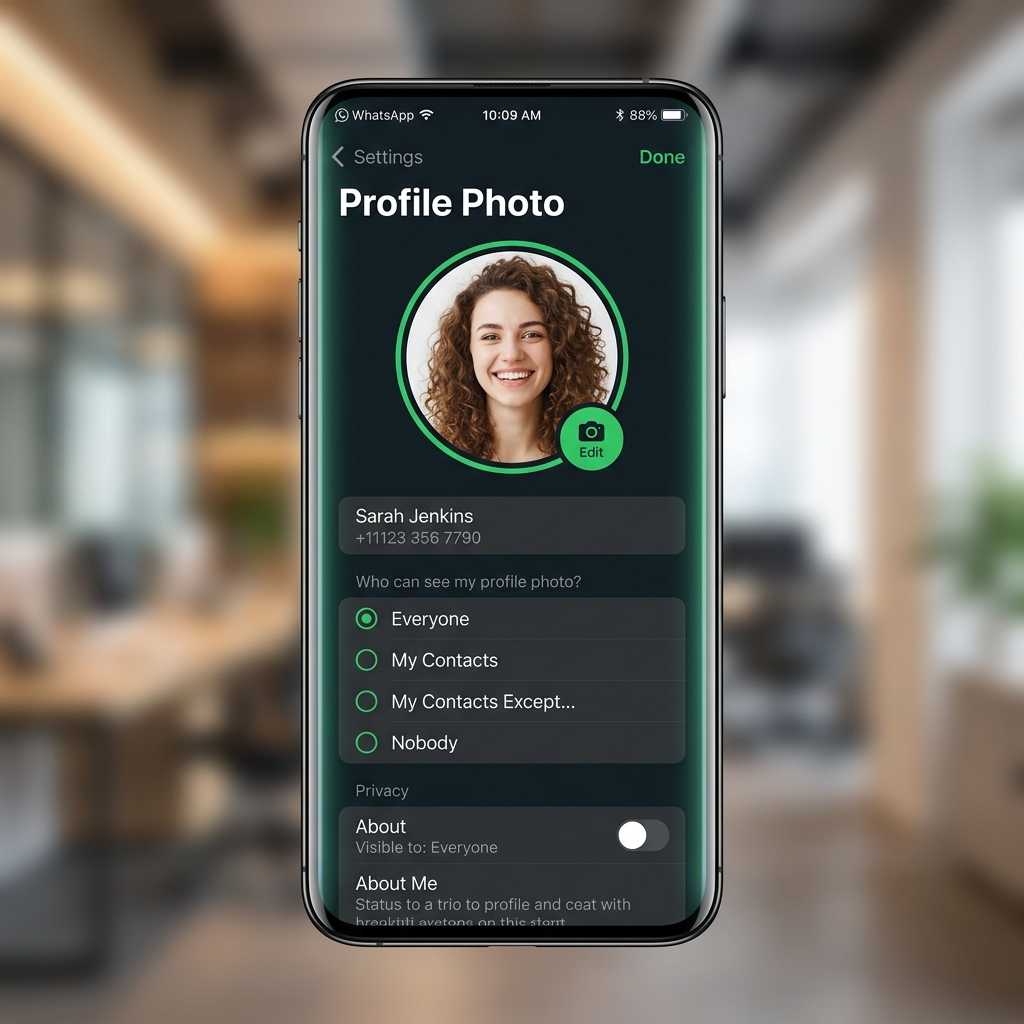 Managing WhatsApp profile pictures, privacy permissions, and avatar customization on mobile devices.
 Interactive diagram illustrating where your profile picture appears across the WhatsApp application ecosystem.
What Is a WhatsApp Profile Picture?
A WhatsApp profile picture is a photograph linked to your phone account identity. When messaging contacts, this thumbnail displays beside your name, offering visual verification before recipients open your message thread.
Unlike media attachments inside chats, your profile photo is a persistent account element. WhatsApp syncs this image across servers, rendering it dynamically across mobile devices, web browsers, tablets, and desktop apps.
Where Does Your WhatsApp Profile Picture Appear?
Your WhatsApp profile picture appears across multiple locations inside the app interface. Understanding these locations helps you choose an image that looks clean at both thumbnail sizes and full-screen view.
Your photo appears in the main chat list tab, top navigation bar of 1-on-1 chats, group chat threads next to messages, call history logs, incoming call screens, and full-screen contact sheets.
What Do PFP, DP, and Profile Photo Mean on WhatsApp?
When navigating messaging settings, users encounter terms like PFP and DP alongside Profile Photo. While these three terms refer to the exact same visual element, each carries a distinct origin.
PFP stands for Profile Picture, popular on social platforms. DP stands for Display Picture, a legacy term from MSN Messenger and BBM. Profile Photo is the official technical term in WhatsApp menus.
How to Set a Profile Picture on WhatsApp
Setting up a profile picture for the first time adds visual personality to your account and builds instant recognition. WhatsApp allows you to upload existing photos from your library or capture a fresh photo with your camera.
How to Add a Profile Picture on Android
Open WhatsApp, tap the three dots in the top right corner, and select Settings. Tap your profile name area at the top of the screen.
Tap the green camera icon on your profile photo circle. Select Gallery, Camera, Avatar, or AI Image. Tap Gallery to select a photo, or tap Camera to take a selfie.
How to Add a Profile Picture on iPhone
Open WhatsApp and tap Settings at the bottom right corner of your tab bar. Tap your profile name at the top of the screen.
Tap Edit beneath your circular profile picture preview. Select Choose Photo to browse your iOS Photos album, or tap Take Photo to open your camera sensor. Adjust cropping boundaries and tap Done.
How to Choose a Photo From Your Gallery
Selecting an image from your gallery lets you pick high-resolution portraits or professional headshots. Tapping Gallery or Photos grants WhatsApp access to your device media folders.
Browse your photo albums to locate your image file. Ensure the subject is clear and well-lit, then tap the thumbnail to import it into WhatsApp's crop editor.
How to Take a New Profile Picture With Your Camera
Selecting Camera launches WhatsApp's integrated camera view. Grant camera permissions if prompted by your operating system.
Center your face within the camera viewfinder guide lines, switch between selfie and main lenses, and tap the shutter button. Tap the checkmark to accept the snapshot and move to cropping.
How to Edit and Crop Your WhatsApp Profile Picture
Before your photograph goes live across WhatsApp servers, the application provides built-in image editing tools to adjust frame boundaries, scale, and image rotation.
Optimal technical dimensions for crisp profile picture rendering without blurriness.
How to Crop and Reposition Your Photo
WhatsApp displays profile pictures inside a circular mask, but cropping occurs on a square 1:1 canvas grid. A movable square grid overlay appears above your photo preview.
Drag the corner handles of the cropping box to adjust the frame boundary. Slide the center of the box to position your face in the middle. Areas outside the grid will be cropped out.
How to Zoom or Rotate Your Profile Picture
If your photo appears sideways, tap the circular rotation arrow at the bottom of the editor view. Each tap turns your picture 90 degrees counterclockwise until upright.
To adjust image scale, perform a pinch gesture with two fingers on your screen. Pinching outward zooms in on facial details, while pinching inward shrinks the photo back down to fit the frame.
What Size and Format Should a WhatsApp Profile Picture Be?
To prevent pixelated thumbnails, adhere to WhatsApp's image specifications. Minimum resolution is 192 by 192 pixels. Uploading at 500 by 500 pixels ensures crisp clarity on HD mobile screens.
WhatsApp supports JPEG and PNG image files. Dynamic animated GIF images are automatically converted to static single-frame thumbnails upon upload. Use square 1:1 ratio JPEG files under 5 MB.
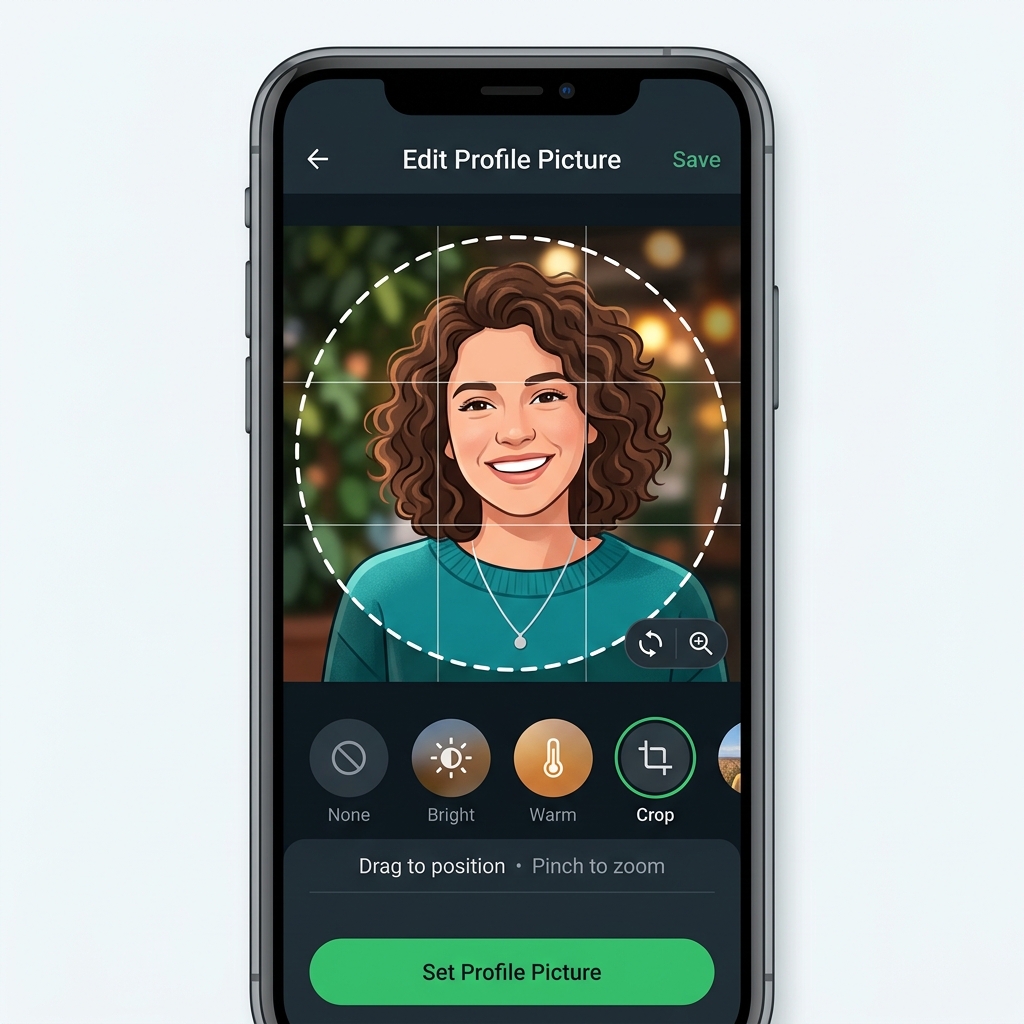 Adjusting circular crop boundaries, pinch-to-zoom framing, and square aspect ratios inside WhatsApp's photo editor.
 How to Change Your WhatsApp Profile Picture
Updating your profile picture periodically allows you to refresh your visual branding, share updated personal portraits, or display seasonal photos without restriction or daily limits.
How to Change Your Profile Picture on Android
Open WhatsApp, tap the top-right three dots menu, and select Settings. Tap your profile picture row at the top of the settings page to open your profile view.
Tap the camera icon overlaying your photo circle. Select Gallery or Camera to choose your replacement photo, adjust the crop box around your subject, and tap Done to save changes instantly.
How to Change Your Profile Picture on iPhone
Open WhatsApp and tap Settings in the bottom tab bar navigation. Tap your profile photo circle at the top left corner to enter profile details.
Tap Edit under your picture circle, then tap Edit in the upper right corner. Select Choose Photo or Take Photo, adjust the circular crop preview, and tap Save to update your profile photo across all sessions.
How to Change Your Profile Picture on WhatsApp Web or Desktop
Open WhatsApp Web in your browser or launch the WhatsApp Desktop app on Windows or macOS. Click your circular profile icon in the top left corner of the app sidebar.
Hover your cursor over your profile picture circle and click Change Profile Photo. Select Upload Photo, locate your file, adjust the crop frame, and click the checkmark to confirm. Read our WhatsApp Username Setup Guide for desktop credential management.
Does WhatsApp Notify Contacts When You Change Your Profile Picture?
No, WhatsApp does not send broadcast notifications or status updates to your contact list when you change or remove your profile picture. Photo replacements occur silently on backend servers.
Contacts will only observe your updated image when they open an existing chat thread with you, view your profile card, or see your thumbnail in group participant rosters after syncing with WhatsApp servers.
How to Remove Your WhatsApp Profile Picture
If you prefer to maintain complete anonymity, remove your visual footprint, or take a temporary break from social messaging, you can delete your profile picture entirely.
How to Delete Your Profile Picture on Android and iPhone
On Android, navigate to Settings > Profile Name > Camera Icon. Tap the red trash icon in the upper toolbar, then confirm by tapping Remove in the confirmation popup box.
On iPhone, navigate to Settings > Profile Name > Edit > Edit. Tap Delete Photo from the bottom pop-up menu, then confirm your action. Your uploaded picture file is permanently deleted from WhatsApp servers.
What Happens When You Remove Your Profile Picture?
When you delete your profile photo, WhatsApp replaces your custom picture with a default neutral gray silhouette inside a gray circle. Anyone inspecting your profile will see this standard placeholder graphic.
Removing your photo does not block contacts, delete conversation histories, or hide your online status. It simply removes your visual identity icon, establishing a neutral presence across chat spaces.
Who Can See Your WhatsApp Profile Picture?
WhatsApp incorporates privacy configuration controls that dictate exactly who can view your profile picture across individual chats, group member lists, and contact sheets.
Granular overview of visibility settings and target recipient exposure levels.
Any WhatsApp user who has your phone number can view your profile picture without restrictions.
Only users saved in your mobile phone address book can view your profile picture.
Your address book contacts can see your photo, excluding specific blocked individuals you choose.
Your profile picture is completely hidden from all users. Everyone sees the default grey silhouette.
What Does Everyone Mean for Profile Photo Privacy?
Setting your Profile Photo permission to Everyone allows any registered WhatsApp user who enters your mobile phone number into their chat list to view your uploaded picture.
This public setting offers zero privacy filtering. It permits unknown callers, marketing accounts, spammers, and public group participants to view your uploaded photograph without restriction.
What Does My Contacts Mean?
Selecting My Contacts restricts your profile picture visibility exclusively to people whose contact details are saved inside your device address book.
If an unknown caller or stranger in a group chat views your account, WhatsApp displays only the blank default silhouette. This represents the recommended privacy baseline for messaging users.
What Does My Contacts Except Mean?
My Contacts Except... provides custom blacklist privacy controls. It permits saved address book contacts to view your photo while letting you specify individual contacts who should be blocked from seeing it.
Select specific acquaintances or business contacts you wish to exclude from your contact list. Excluded users will see the default silhouette without receiving notification that they were excluded.
What Does Nobody Mean?
Selecting Nobody locks down your profile picture visibility entirely. No user on WhatsApp—regardless of whether they are saved in your contact list—can view your picture.
Every user across your chat threads, group member rosters, and call logs will see only the default neutral gray avatar icon, giving you complete visual privacy.
How to Hide Your WhatsApp Profile Picture
Hiding your profile picture takes only a few seconds through your account privacy settings menu on Android or iPhone.
How to Hide Your Profile Picture From Everyone
To hide your photo from all WhatsApp users globally, open Settings, select Privacy, tap Profile Photo, and select Nobody from the option list.
Your preference updates immediately across WhatsApp backend servers, replacing your photo display with the neutral gray silhouette for every user.
How to Hide Your Profile Picture From Specific Contacts
To hide your photo from select individuals while keeping it visible to trusted friends, open Settings > Privacy > Profile Photo, and choose My Contacts Except....
Browse your contact list, select the specific contacts you wish to restrict, and tap the green checkmark or Done button to save your exclusion list.
How to Hide Your Profile Picture From People You Don't Know
To shield your photo from strangers, unknown phone numbers, and public group participants, set your Profile Photo privacy to My Contacts. To explore broader account privacy options, learn how the WhatsApp Username Privacy Key protects your account identity.
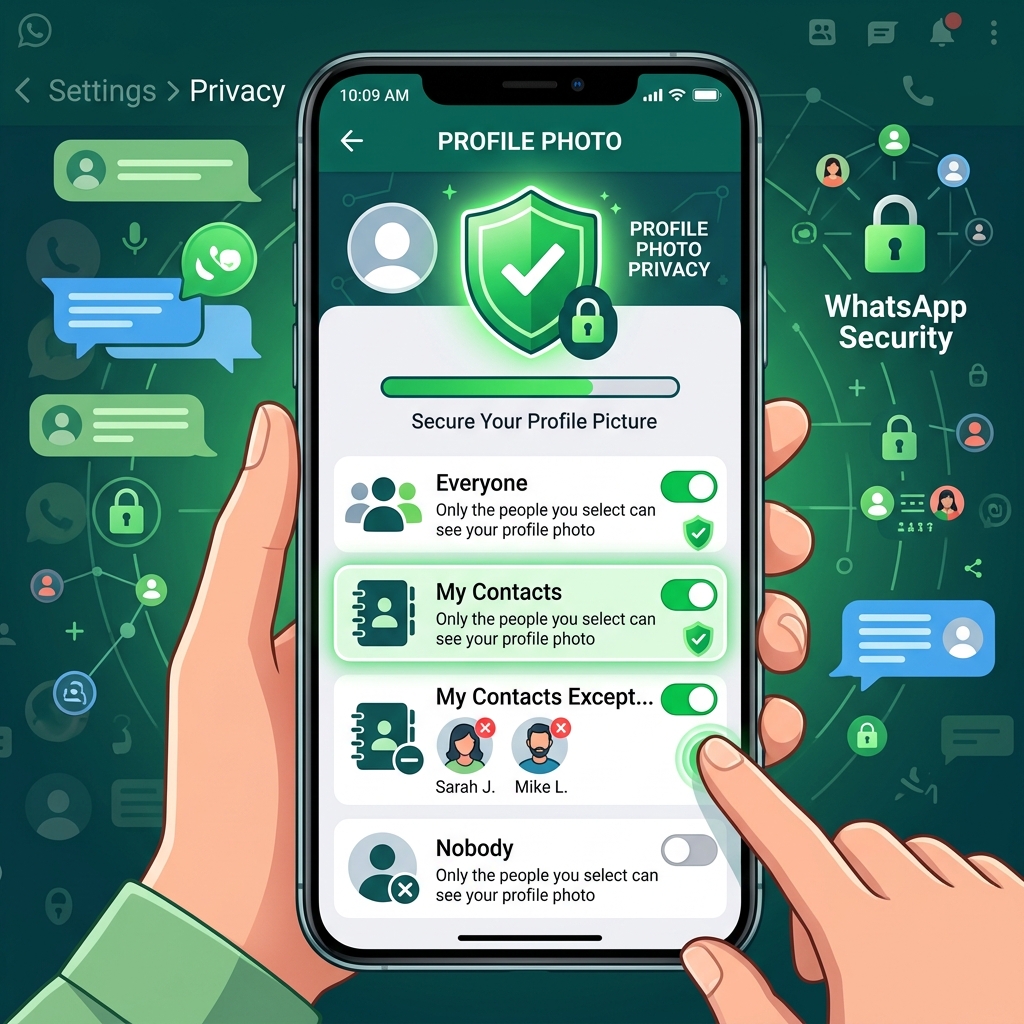 Configuring profile picture privacy settings, excluding specific contacts, and managing visual security parameters.
 Why Is My WhatsApp Profile Picture Not Showing?
If your profile picture fails to display properly or a contact's photo suddenly disappears, specific privacy rules, device caching bugs, or account block status are usually responsible.
Follow these troubleshooting steps to fix missing or blurry profile picture issues.
Why Can't Someone See My Profile Picture?
If someone cannot see your photo, check if your privacy is set to My Contacts and ensure both users have saved each other's numbers. Verify they are not excluded or blocked.
Why Is My Profile Picture Not Updating?
Outdated displays stem from local device caching. Force close WhatsApp, restart the app, or clear app cache in device settings to force a thumbnail refresh.
Why Does My Profile Picture Look Blurry or Cropped?
Blurry photos occur from low resolution uploads under 192x192 pixels or heavy cropping. Upload 500x500 pixel square JPEG files to fix blurriness.
Why Can't I Change or Upload My Profile Picture?
Upload errors stem from weak connectivity or missing app permissions. Ensure WhatsApp has full permission to access device Photos and Camera in system settings.
WhatsApp Profile Picture vs. Avatar
WhatsApp enables 3D digital avatars as personalized profile identity illustrations.
Can You Use a WhatsApp Avatar as Your Profile Picture?
Yes, go to Settings > Profile Picture > Camera Icon > Avatar, customize your 3D character, select a background accent color, and tap save to apply.
How to Replace Your Avatar With a Photo
Go to Settings > Profile Picture > Camera Icon, select Gallery or Camera, pick a real photo, crop, and save to replace your avatar thumbnail.
WhatsApp Profile Picture Privacy and Security
Understanding photo security rules empowers you to prevent unauthorized visual access or downloads by strangers.
Can Someone Save or Screenshot Your Profile Picture?
WhatsApp blocks direct profile picture downloads and screenshot captures on full-screen profile views across Android and iOS to safeguard user privacy.
Can Someone See Your Profile Picture If You Block Them?
No, blocking a contact immediately removes your profile picture from their view, leaving only the default neutral grey silhouette avatar.
What Happens to Your Profile Picture When You Block Someone?
Blocking an account revokes profile photo, last seen, and status visibility. Review our guide on WhatsApp vs Telegram vs Signal Privacy for full platform security analysis.
Frequently Asked Questions About WhatsApp Profile Pictures
Here are quick answers to key questions about WhatsApp profile picture rules and privacy behavior.
Can Strangers See My WhatsApp Profile Picture?
Strangers can only see your picture if privacy is set to Everyone. Setting privacy to My Contacts hides your photo from unsaved numbers.
Can Someone See My Profile Picture If I Don't Have Their Number Saved?
Under My Contacts privacy, strangers cannot view your profile photo unless you also save their telephone number in your mobile address book.
Why Can't I See Someone's WhatsApp Profile Picture?
You cannot see someone's photo if they set privacy to Nobody or My Contacts Except, haven't saved your number, removed their photo, or blocked you.
Does WhatsApp Notify Someone When You View Their Profile Picture?
No, viewing profile pictures is completely private and does not send notifications or view logs to photo owners.
Can I Hide My WhatsApp Profile Picture From One Person?
Yes, go to Settings > Privacy > Profile Photo > My Contacts Except... and select the specific person to hide your photo without notifying them.
Can I Use WhatsApp Without a Profile Picture?
Yes, deleting your photo or setting privacy permissions to Nobody lets you use WhatsApp with the default neutral grey silhouette across all conversations.